Getting Started
Atlas Platform Workspace Overview
Learn how to authenticate, switch organization contexts, and navigate the primary Atlas operational workspaces.
Authorized Roles:owneradministratorproperty-managerproject-collaborator
Purpose & Overview
Atlas provides an integrated operations management console for commercial real estate portfolios, property managers, and building maintenance teams. This guide explains how to authenticate securely, select an active organization context, and access core operational workspaces.
Prerequisites & Role Visibility
- Access requires a verified organizational email and invitation token.
- Available to all system roles: Owner, Administrator, Property Manager, and Project Collaborator.
Navigation Steps
- Navigate to the Atlas entry point at
/organizations. - Sign in using your organization credentials or single sign-on (SSO).
- If you belong to multiple entities, select the relevant organization card from the selector directory.
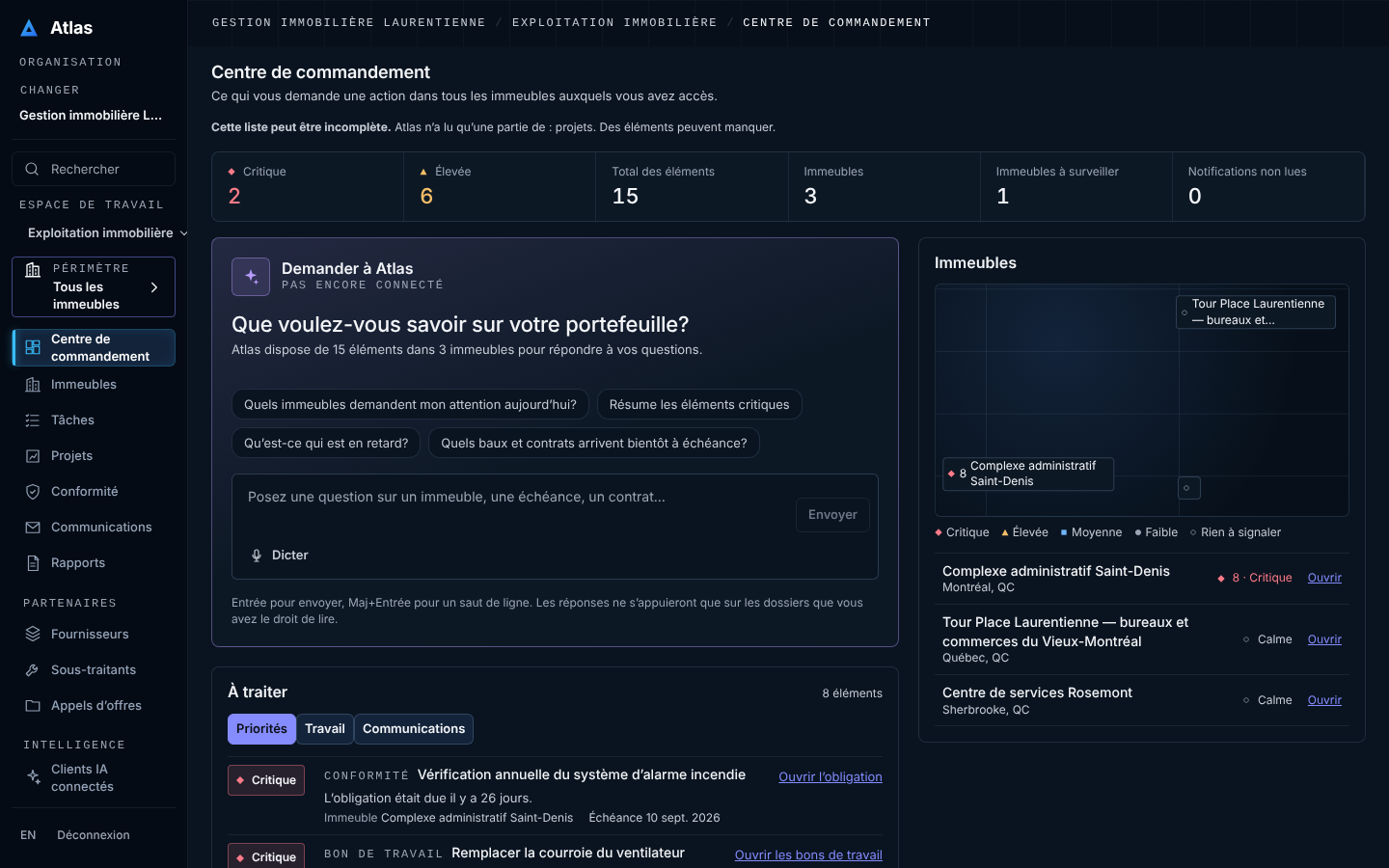
- Once loaded, the operational workspace displays the main dashboard and navigation bar.
Operational Results
Upon selecting your organization, you are placed in your assigned Workspace Profile (e.g. Leadership, Property Management, or Accounting), displaying current notifications, alerts, and pending approvals.
Exceptions & Troubleshooting
- Unresolved Organization Slug: If accessing an unfamiliar slug directly via URL, Atlas displays the organization selector rather than an unauthorized error.
- Session Expiry: Inactive sessions automatically expire after 8 hours; your unsaved drafts remain preserved in local IndexedDB storage.
Verified User Interface Evidence
Atlas Organization Selector & Navigation Home
SHA 3bf3656
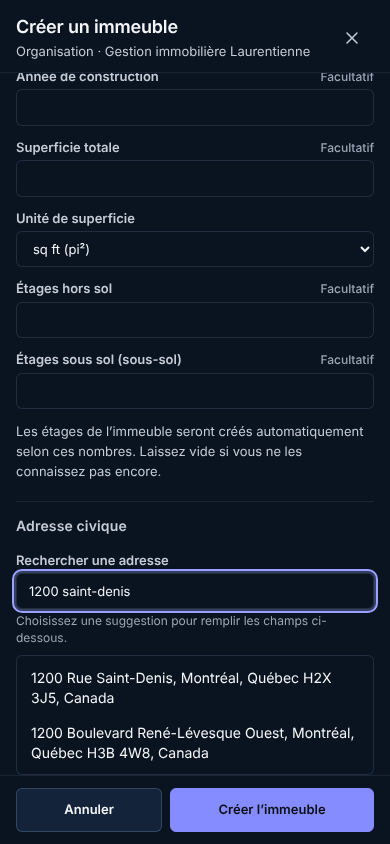
Atlas Mobile Responsive Header & Menu
SHA 3bf3656
Last verified:2026-10-08
Source commit: 3bf36562
Helpful?